The email deliverability checklist we wish everyone had
A practical checklist for giving your email a better chance of reaching the inbox: authentication, permission, list hygiene, unsubscribe, and monitoring.

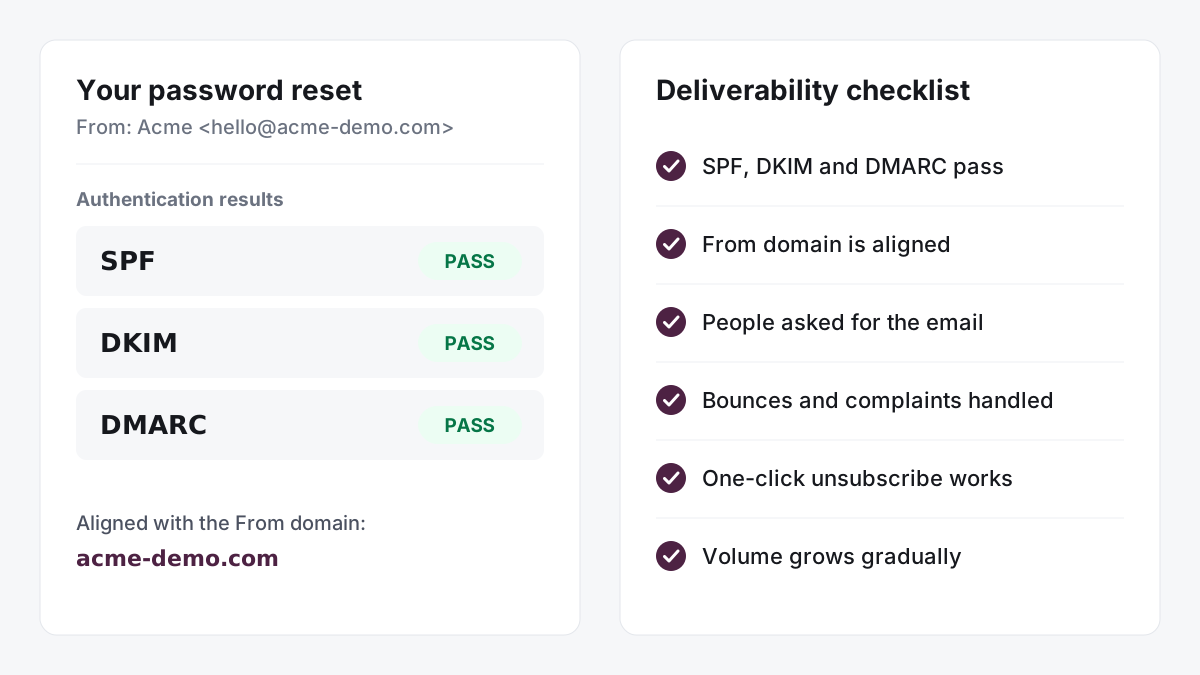
A customer requests a password reset. Your application sends it. Your email dashboard says “delivered.”
Then the customer asks where it is.
“Delivered” usually means the receiving mail server accepted the message. It doesn’t tell you whether that message reached the inbox, landed in spam, or disappeared into a folder the customer never checks.
That gap is what email deliverability is about.
There’s no setting that guarantees inbox placement. But there are practical things you can do to give your email a better chance: authenticate your domain, send messages people expect, handle failures properly, and pay attention when the numbers change.
This checklist covers those foundations, whether you send a few hundred receipts or a large newsletter.
First, know what your email provider handles
Your provider manages the infrastructure that sends your messages: mail servers, sending IPs, delivery connections, and processing the feedback it receives.
You control who gets emailed, what they receive, how often you send, and the DNS records published for your domain.
Some responsibilities overlap. Your provider gives you authentication records, but you publish them. It can process reported complaints, but you need to act on what those complaints say about your audience.
Good deliverability depends on both sides doing their part.
1. Set up SPF, DKIM, and DMARC
These three standards help receiving servers verify your email:
- SPF identifies the servers allowed to send for your envelope-sender domain, which can differ from the address readers see.
- DKIM adds a digital signature that lets receivers verify the signing domain and detect changes to signed parts of the message.
- DMARC connects authentication to the visible From domain and publishes your policy for messages that fail that check.
Gmail and Yahoo require all three for bulk senders. Microsoft also requires them for high-volume senders to its consumer email services. Set them up even if your volume is small: since November 2026, Outlook.com also rejects some email from domains with no DMARC record, whatever their volume. What changed, and the one-record fix. Gmail requirements, Yahoo requirements, Microsoft requirements.
One detail matters: publishing the records is only the beginning. Your actual messages need to pass the checks.
Send a test through each service that emails on your behalf (your website, CRM, help desk, and billing platform) and inspect the authentication results.
Check these:
- SPF authorizes your active sending services.
- DKIM signing is enabled.
- DMARC is published and messages pass.
- Records for services you no longer use have been reviewed and removed where appropriate.
Keep SPF tidy. Its evaluation has a limit of ten DNS-querying mechanisms and modifiers, including nested lookups. Old provider entries can push a record over that limit and cause an authentication error. SPF specification.
Check your domain’s SPF record here. The checker follows every include: and counts the lookups against the limit of ten:
With toSend, copy the exact DKIM, SPF, and MX records from your domain dashboard (how to add a domain). Your DKIM value belongs to your workspace, so don’t copy a sample key from an article. toSend’s SPF record lives on send.yourdomain.com, so it never touches the SPF record of your main domain. Add DMARC separately if you don’t already have a valid policy.
If your DNS is on Cloudflare
Most domains on toSend use Cloudflare for DNS, and two things get easier there:
- toSend can add its records for you. When you add a domain whose DNS is on Cloudflare, the domain page shows Set up automatically. You approve the change in Cloudflare and come back; the DKIM, SPF, and MX records are in place. This works for a main domain, not a subdomain.
- Cloudflare can add DMARC for you. Its free DMARC Management (under Email in the Cloudflare dashboard) creates the
_dmarcrecord and turns DMARC reports into a readable dashboard. Afterwards, check that_dmarchas only one record. Step by step.
2. Make authentication match your From address
An email can pass SPF or DKIM and still fail DMARC.
That happens when the authenticated domain doesn’t align with the domain in the From address your reader sees.
For example, if you send as hello@example.com, a passing DKIM signature for an unrelated provider domain doesn’t establish that example.com authorized the message.
To pass DMARC, at least one passing authentication method, SPF or DKIM, must align with your visible From domain. Under relaxed alignment, the domains can share the same organizational domain. Strict alignment requires an exact match. DMARC alignment explained.
Use a From address on a domain you control and have verified with your provider. Then inspect a real message to confirm alignment.
toSend signs every message with DKIM for your own domain, and its SPF domain is send.yourdomain.com, so both align under the default relaxed setting. If your DMARC record sets aspf=s, SPF stops aligning for toSend mail; DKIM still passes, but change it to aspf=r so both checks count. Why.
In Gmail, open the message menu and choose Show original to see the authentication results.
3. Introduce DMARC enforcement carefully
A reasonable starting policy is:
v=DMARC1; p=none; rua=mailto:dmarc@example.com
Publish it as a TXT record at _dmarc.example.com, replacing the example domain and report address with your own.
The report address needs to work. DMARC aggregate reports usually arrive as XML attachments, so a report-processing service can make them easier to understand.
With p=none, you’re asking receivers to report authentication results without requesting quarantine or rejection because of DMARC failure. Messages can still be filtered or rejected for other reasons.
Use those reports to identify legitimate services sending for your domain and fix their authentication. Once you understand your sending sources, consider stronger policies:
p=quarantineasks receivers to treat failing messages as suspicious.p=rejectasks receivers to reject failing messages.
These policies help protect your domain against impersonation. They don’t guarantee inbox placement, and moving too quickly can affect legitimate email from a service you overlooked.
Start with our DMARC setup guide, build a record with the DMARC generator, or check what your domain publishes right now:
In toSend, a verified domain with no DMARC record, or a broken one, shows a No DMARC or DMARC invalid badge in your Domains list, and the domain page shows the exact record to add.
4. Separate transactional email from marketing
Password resets and newsletters have different jobs.
A password reset should arrive because someone needs it now. A newsletter should arrive because someone subscribed to it. Give each stream its own sending setup where practical.
For example:
| Email type | Sending subdomain |
|---|---|
| Password resets, receipts, account notifications | mail.example.com |
| Newsletters and promotions | news.example.com |
This makes it easier to manage volume, investigate problems, and monitor each stream. In toSend, add each subdomain as its own sending domain, so its logs and bounce rate show separately.
Yahoo specifically recommends separating bulk and marketing email from transactional messages. But subdomains aren’t a complete reputation barrier: receivers can consider the parent domain, shared infrastructure, and other signals. Yahoo’s sending recommendations.
Also, splitting traffic across subdomains doesn’t avoid Gmail’s bulk-sender classification. Google counts messages from the same primary domain together. Gmail’s bulk-sender definition.
5. Send messages people asked to receive
Before adding someone to a marketing list, ask a simple question:
Would this person recognize us and understand why this email arrived?
An address in your database doesn’t answer that question. Neither does a purchase, an old business card, or an email address found online.
Make the signup clear about what you’ll send and roughly how often. Keep a record of when and how the person subscribed.
For mailing lists, double opt-in is a useful safeguard: someone signs up, receives a confirmation email, and joins the active list after confirming. It helps catch typos and signups made with someone else’s address.
Check these:
- Subscribers knowingly requested the marketing messages.
- Signup forms explain what to expect.
- Subscription records are retained.
- Purchased, rented, and scraped addresses stay out of the list.
- Signup forms reject throwaway addresses. Our disposable email checker shows how that check works.
Keep marketing permission separate from necessary service messages. Someone requesting a receipt or password reset hasn’t automatically asked for a newsletter.
6. Give inactive subscribers a sensible exit
Lists change. People leave jobs, abandon mailboxes, or lose interest.
Continuing to email every address indefinitely creates unnecessary risk. Establish a policy for reducing or stopping marketing messages to inactive subscribers.
The right window depends on your schedule and audience. Six months means something different for a weekly newsletter than for an annual renewal reminder.
Use several signals where available: clicks, replies, purchases, account activity, and explicit preference updates. Open rates alone are unreliable, partly because privacy features can prevent senders from knowing whether a person opened a message. Apple’s Mail Privacy Protection explanation.
If permission is still clear, a re-engagement message can give subscribers a chance to confirm their interest. Set a stopping point if they don’t respond.
Apply this policy to marketing subscriptions. Necessary account and service messages need their own rules.
7. Act on bounces and reported complaints
A bounce tells you a message couldn’t be delivered. The reason determines what to do next.
An invalid mailbox calls for removing or correcting the address. A temporary mailbox problem may justify a later retry. An authentication or sending-IP rejection calls for investigating your setup.
Don’t treat every bounce as proof that the recipient address is bad.
Spam complaints deserve immediate attention too. Google recommends keeping its reported spam rate below 0.1% and avoiding 0.3% or higher. Yahoo requires a rate below 0.3%. Treat these as limits to stay comfortably below. Google’s spam-rate guidance, Yahoo’s requirements.
Your provider’s complaint rate and a mailbox provider’s rate may use different data and denominators. Check mailbox-provider reporting alongside your sending dashboard.
Check these:
- Stop routine sends to confirmed invalid addresses.
- Investigate repeated temporary failures.
- Stop marketing to recipients whose complaints are reported.
- Preserve unsubscribe and suppression records when changing providers.
toSend automatically applies suppression rules to hard bounces and reported complaints, and can post each bounce and complaint to your own endpoint through webhooks, so your application can update the subscriber too. Keep your own durable marketing opt-out records too; provider suppression rules are a delivery safeguard, while subscription preferences belong in your application or mailing platform.
8. Make unsubscribing easy and test it
An easy unsubscribe gives someone a clear way to leave before they reach for “Report spam.”
For bulk marketing and subscribed messages, implement one-click unsubscribe and include a visible unsubscribe link in the body.
The RFC 8058 header format looks like this:
List-Unsubscribe: <https://example.com/unsubscribe/unique-token>
List-Unsubscribe-Post: List-Unsubscribe=One-Click
The HTTPS endpoint must process the unsubscribe POST without requiring a login, confirmation page, or further action. The two headers also need to be covered by a valid DKIM signature. One-click unsubscribe specification.
Process requests immediately where possible, and within 48 hours. Yahoo requires requests to be honored within two days. Yahoo’s unsubscribe requirements.
With toSend, you can supply both headers through the API; they pass through unchanged. Your application handles the unsubscribe request.
Test the whole path: inspect the received message, verify the headers, exercise the endpoint, and confirm that the recipient stops receiving the relevant marketing messages.
9. Build volume gradually
A new sending setup has little history. Start with a smaller audience that recently asked to hear from you, then increase volume as the results support it.
Avoid jumping from occasional messages to a large campaign overnight. Google recommends consistent sending rates and gradual increases, with adjustments when bounces or deferrals rise. Google’s sending-volume guidance.
There’s no universal warm-up calendar. Your audience, infrastructure, and receiving providers all affect the pace.
Buying a domain and waiting a few weeks doesn’t establish a sending reputation by itself. Build that history through legitimate messages people expect.
After a long pause, restart cautiously and review the audience before sending at your previous volume.
10. Make the email recognizable and useful
Authentication establishes identity. The message still needs to earn the reader’s attention.
Use a sender name people recognize, a subject that accurately describes the email, and a reply address someone monitors.
Keep the message readable when images don’t load. Include useful text, descriptive links, and a plain-text version. toSend generates a text version when you send only HTML, but reviewing it yourself gives you more control over the reading experience.
Before sending:
- The sender and purpose are clear.
- The subject accurately reflects the content.
- Important information is readable without images.
- Links work and lead to destinations readers can trust.
- The layout works on mobile.
- The unsubscribe link is easy to find where applicable.
Don’t spend all your effort removing supposed “spam words.” Clear, honest copy helps, but it can’t compensate for an audience that never wanted the message.
11. Monitor before customers notice a problem
Make deliverability checks part of your routine.
Review provider logs for bounces, deferrals, and rejection reasons. Use DMARC reports to watch authentication across your sending services.
For Gmail traffic, Google Postmaster Tools provides compliance, spam-rate, authentication, and delivery information where enough data is available. A blank dashboard doesn’t necessarily mean there’s no problem; low-volume senders may have limited reporting. Google Postmaster Tools guidance.
In toSend, email logs are available for 14 days, and the Needs attention card on your dashboard flags a domain whose bounce rate reaches 2%, or that has no DMARC record. Review problems promptly and retain the records your business needs beyond that window.
Look for patterns: failures concentrated at one mailbox provider, a campaign followed by more complaints, or a sending service that starts failing authentication.
Remember the distinction from the beginning: a receiving server accepting your email is useful evidence, but it isn’t proof of inbox placement.
Where to start this week
If you haven’t reviewed your sending setup recently, start here:
- Send a test through every service you use. Confirm SPF, DKIM, and DMARC pass on the received messages. Check your records with our free email tools.
- Review your marketing audience. Remove confirmed invalid addresses and stop sending where permission is missing or withdrawn.
- Test unsubscribe from end to end. Confirm that the request changes what your application actually sends.
- Review recent delivery failures. Fix recurring causes before increasing volume.
Deliverability improves through ordinary work done consistently: clear permission, correct authentication, useful messages, and quick responses to problems.
Start with your domain. Then look at your list. Keep checking both as your email grows.